Product catalog
Turn your product photography into a browsable catalog. Curate a board per collection, tag each shot with structured fields like SKU and price, then publish a hosted catalog or fetch the board and render your own storefront. Update the board and the catalog updates itself, no redeploy.
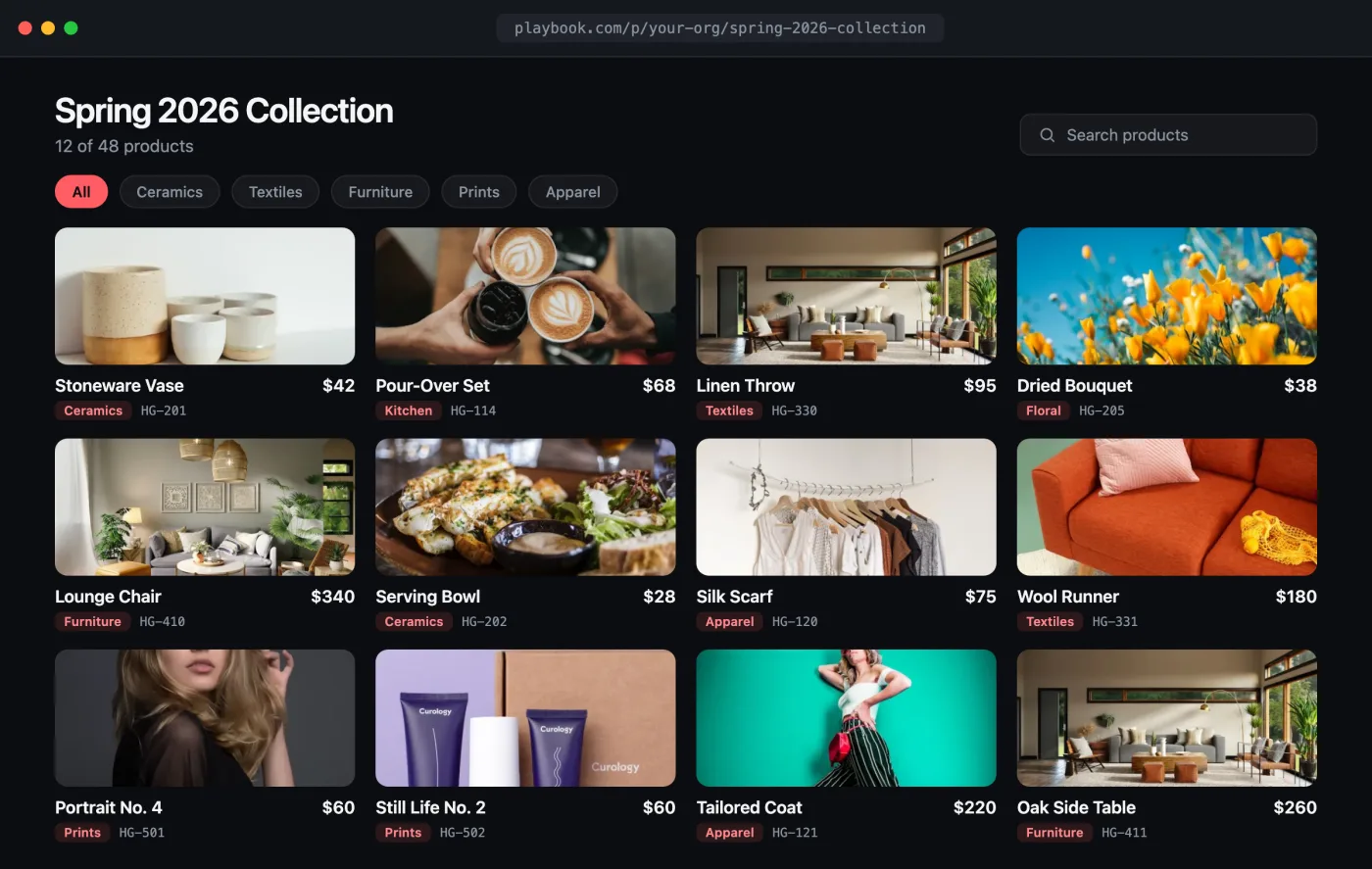
Open the interactive preview → · a self-contained index.html you can click through in your browser (browse products, filter by category) or download.
The flow
- Create a board for the collection.
- Add product shots and tag them with custom fields (SKU, price, category).
- Publish it as a browsable catalog, or fetch the board's assets and render your own grid.
1. Create the catalog board
curl -X POST "https://api.playbook.com/v1/$ORG/boards" \
  -H "Authorization: Bearer $PLAYBOOK_TOKEN" \
  -H "Content-Type: application/json" \
  -d '{ "title": "Spring 2026 — Outerwear", "description": "Product shots for the spring line" }'
The response includes the board's token (e.g. spring-2026-outerwear). See
Creating Boards.
2. Add products with structured fields
Point Playbook at your product images and attach the fields that make a catalog shoppable. Custom fields become filterable facets on the board:
curl -X POST "https://api.playbook.com/v1/$ORG/assets/batch_create_from_urls" \
  -H "Authorization: Bearer $PLAYBOOK_TOKEN" \
  -H "Content-Type: application/json" \
  -d '{
    "batch": {
      "collection_token": "spring-2026-outerwear",
      "assets": [
        {
          "uuid": "1",
          "uri": "https://example.com/products/parka-front.jpg",
          "title": "Alpine Parka",
          "fields": { "SKU": "OW-1042", "Price": "248.00", "Category": "Jackets" }
        },
        {
          "uuid": "2",
          "uri": "https://example.com/products/vest-front.jpg",
          "title": "Trail Vest",
          "fields": { "SKU": "OW-1043", "Price": "129.00", "Category": "Vests" }
        }
      ]
    }
  }'
Define the fields once for the org so they stay consistent across catalogs. See Custom Fields.
3a. Publish it (hosted catalog)
The fastest path: publish the board and hand back a public URL your buyers can browse and search.
curl -X POST "https://api.playbook.com/v1/$ORG/boards/spring-2026-outerwear/publish" \
  -H "Authorization: Bearer $PLAYBOOK_TOKEN"
{ "data": { "url": "https://playbook.com/p/your-org/spring-2026-outerwear" } }
Embed it in your store or wholesale site:
<iframe
  src="https://playbook.com/p/your-org/spring-2026-outerwear"
  style="width:100%;height:900px;border:0"
  title="Product catalog"
></iframe>
3b. Or render your own storefront
Prefer full control over the markup? Fetch the board's assets, including each product's fields, and lay out your own grid.
const ORG = "your-org";
const BOARD = "spring-2026-outerwear";
const TOKEN = process.env.PLAYBOOK_TOKEN;

type Product = {
  token: string;
  title: string;
  display_url: string;
  fields: { SKU?: string; Price?: string; Category?: string };
};

async function getCatalog(): Promise<Product[]> {
  const res = await fetch(
    `https://api.playbook.com/v1/${ORG}/boards/${BOARD}/assets?per_page=100`,
    { headers: { Authorization: `Bearer ${TOKEN}` } },
  );
  const { data } = await res.json();
  return data;
}

export default async function Catalog() {
  const products = await getCatalog();
  return (
    <div style={{ display: "grid", gridTemplateColumns: "repeat(3, 1fr)", gap: 16 }}>
      {products.map((p) => (
        <figure key={p.token}>
          <img src={p.display_url} alt={p.title} loading="lazy" style={{ width: "100%", borderRadius: 8 }} />
          <figcaption>
            <strong>{p.title}</strong> · ${p.fields.Price}
            <div>SKU {p.fields.SKU}</div>
          </figcaption>
        </figure>
      ))}
    </div>
  );
}
To filter by category or price on the server, use search with field filters.