Client presentation deck
Pitch clients with a living deck instead of a static export. Assemble your slides on a board, share it as a full-screen, click-through experience, and collect feedback inline. Reorder or swap a slide on the board and the deck updates itself, so the link you sent yesterday is never out of date.
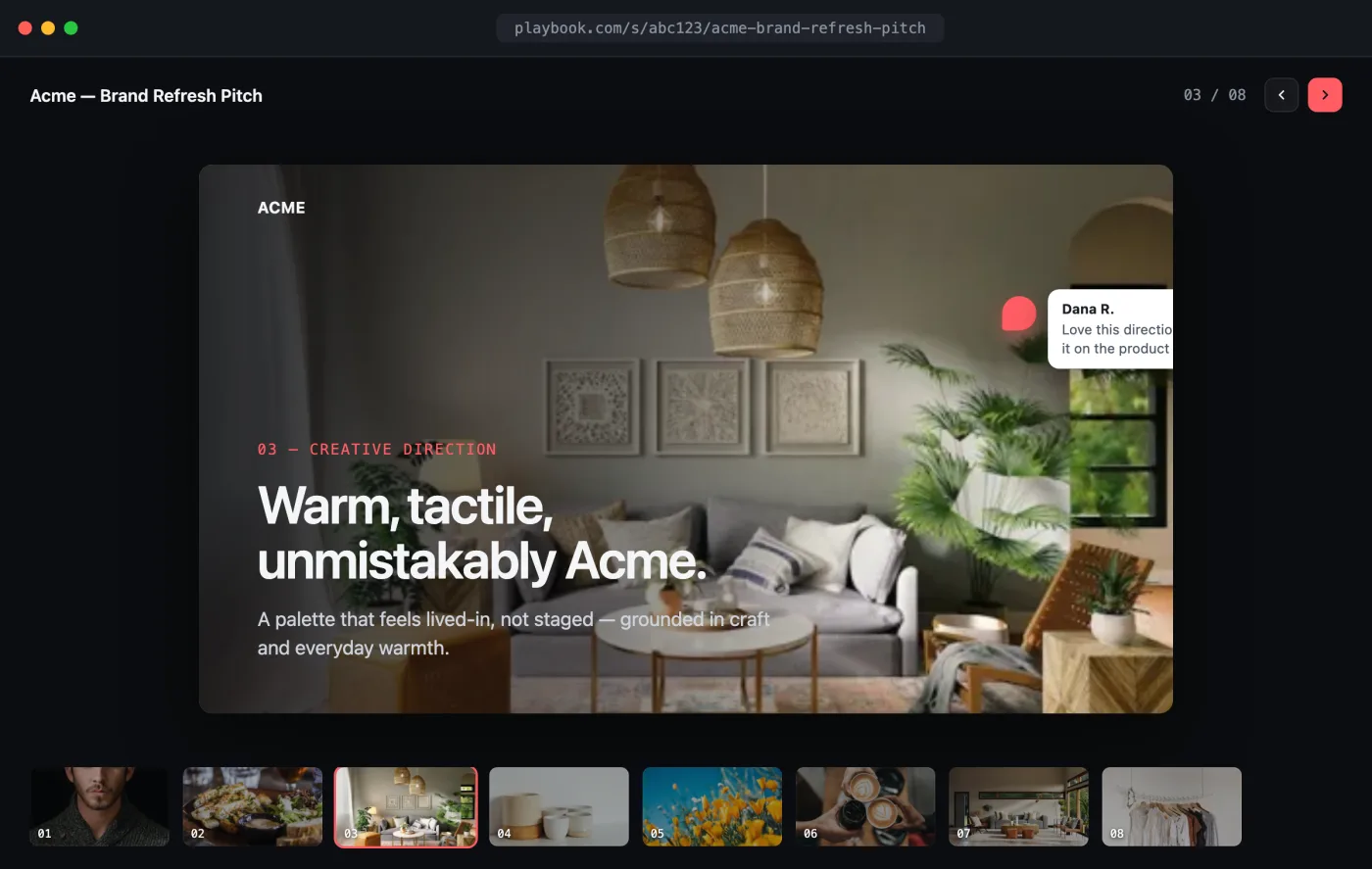
Open the interactive preview → · a self-contained index.html you can click through in your browser (step through slides, read client comments) or download.
The flow
- Create a board, one asset per slide, in presentation order.
- Share it for a client-facing, full-screen deck link.
- Embed the deck in a proposal or send the link directly.
- Collect client feedback per slide with comments.
1. Build the deck board
curl -X POST "https://api.playbook.com/v1/$ORG/boards" \
  -H "Authorization: Bearer $PLAYBOOK_TOKEN" \
  -H "Content-Type: application/json" \
  -d '{ "title": "Acme — Brand Refresh Pitch", "description": "Client presentation deck" }'
Add your slides in the order you want them presented. Rendered slides (exported from Figma, Keynote, or your design tool) upload just like any other asset:
curl -X POST "https://api.playbook.com/v1/$ORG/assets/batch_create_from_urls" \
  -H "Authorization: Bearer $PLAYBOOK_TOKEN" \
  -H "Content-Type: application/json" \
  -d '{
    "batch": {
      "collection_token": "acme-brand-refresh-pitch",
      "assets": [
        { "uuid": "1", "uri": "https://example.com/deck/01-cover.png", "title": "Cover" },
        { "uuid": "2", "uri": "https://example.com/deck/02-problem.png", "title": "The problem" },
        { "uuid": "3", "uri": "https://example.com/deck/03-direction.png", "title": "Creative direction" }
      ]
    }
  }'
Slides appear in the order they sit on the board, so arrange them there and the deck follows. For local files, see the signed-upload flow in Uploading Assets.
2. Share the deck
curl -X POST "https://api.playbook.com/v1/$ORG/boards/acme-brand-refresh-pitch/share" \
  -H "Authorization: Bearer $PLAYBOOK_TOKEN"
{ "data": { "url": "https://playbook.com/s/abc123/acme-brand-refresh-pitch" } }
Send that link and the client opens a full-screen, click-through deck, no attachment, no file to keep in sync. Embed it in a proposal page too:
<iframe
  src="https://playbook.com/s/abc123/acme-brand-refresh-pitch"
  style="width:100%;height:720px;border:0"
  title="Presentation deck"
></iframe>
For a fully public deck instead of a link-gated one, publish it with
POST /v1/$ORG/boards/acme-brand-refresh-pitch/publish. See
published vs. shared.
3. Collect feedback per slide
Clients comment directly on the shared deck. Read it back per slide to drive a review thread in your own tool:
const ORG = "your-org";
const TOKEN = process.env.PLAYBOOK_TOKEN!;

async function slideComments(assetToken: string) {
  const res = await fetch(
    `https://api.playbook.com/v1/${ORG}/assets/${assetToken}/comments`,
    { headers: { Authorization: `Bearer ${TOKEN}` } },
  );
  const { data } = await res.json(); // threaded: replies nest under `replies`
  return data;
}
Comments are threaded, which maps cleanly onto a round of client notes. See Comments.