# Brand portal
Distribute approved brand assets — logos, fonts, templates — to partners and teams, with a single source that's always current. Approve once on a board; everyone downstream sees the update immediately.
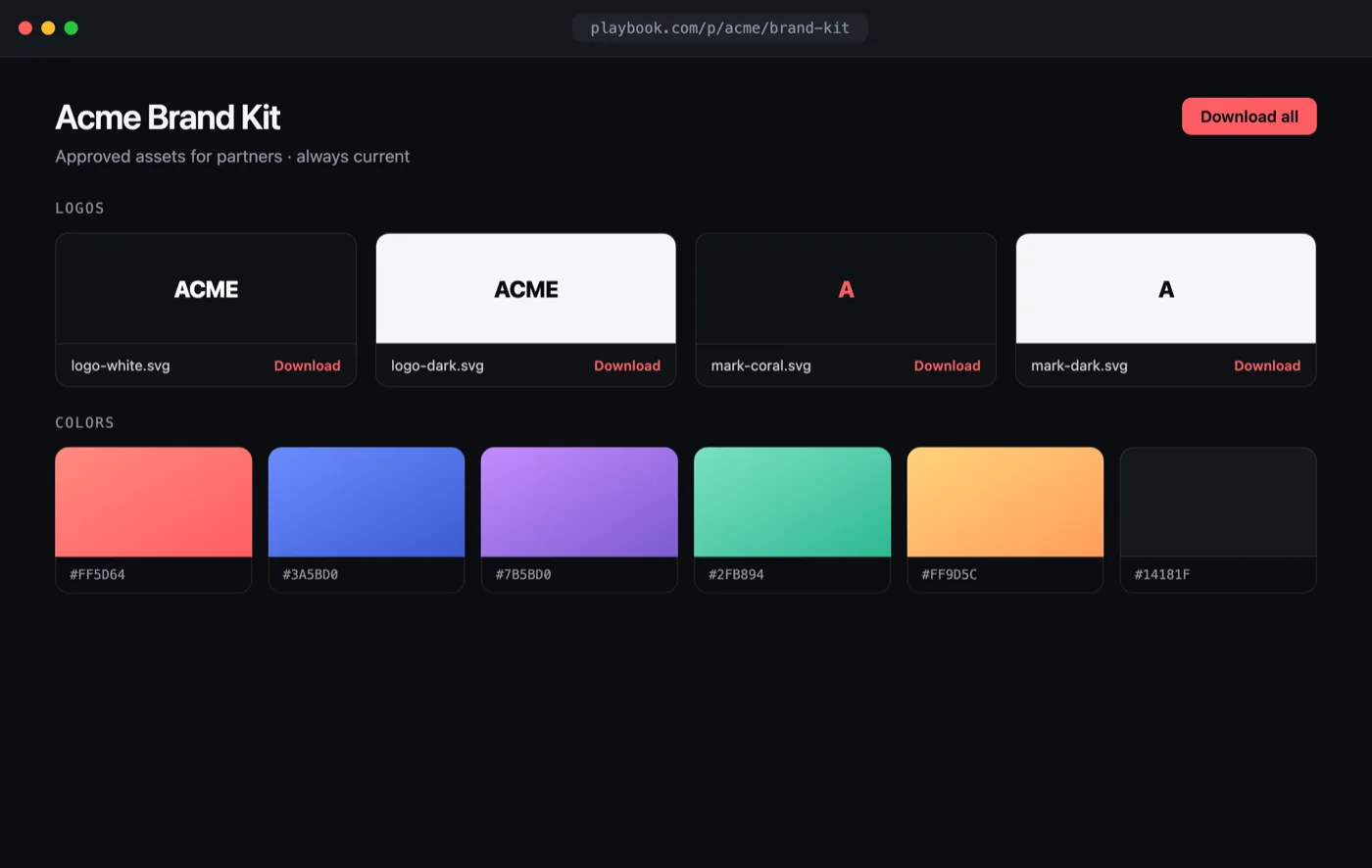
Live preview
**[Open the interactive preview →](/demos/brand-portal/index.html)** · a self-contained `index.html` you can click through in your browser (open photos, favorite shots, switch tabs) or download.
## The flow[](#the-flow "Direct link to The flow")
1. Keep a board of **approved** assets (curated with [custom fields](/docs/examples/digital-asset-management.md#1-define-your-taxonomy)).
2. **Publish** it as a public portal, or **share** it for a link-gated one.
3. **Embed** the portal in your intranet or marketing site.
4. Serve downloads with **token-scoped** API keys.
## 1. Curate approved assets[](#1-curate-approved-assets "Direct link to 1. Curate approved assets")
Filter your library down to what's cleared for distribution and collect it on a "Brand kit" board. An approval custom field makes this reliable: filter by it in Playbook, then add the matching assets to the board. The public REST `/search` endpoint can filter by that field too, through `filters[statuses][]` — see [Custom Fields](/docs/guides/custom_fields.md). Downstream clients read the curated board through `/v1/$ORG/boards/brand-kit/assets`.
## 2. Publish the portal[](#2-publish-the-portal "Direct link to 2. Publish the portal")
```
curl -X POST "https://api.playbook.com/v1/$ORG/boards/brand-kit/publish" \
-H "Authorization: Bearer $PLAYBOOK_TOKEN"
```
```
{ "data": { "url": "https://playbook.com/p/your-org/brand-kit" } }
```
A published board is a public, always-current gallery — update the board and the portal updates with it, no redeploy. For a link-gated portal instead, use `POST /v1/$ORG/boards/brand-kit/share`. See the [published vs. shared](/docs/guides/sharing_and_publishing.md#published-vs-shared) comparison.
## 3. Embed it[](#3-embed-it "Direct link to 3. Embed it")
Drop the portal straight into your intranet or brand site:
```
```
## 4. Scope partner access[](#4-scope-partner-access "Direct link to 4. Scope partner access")
Issue **separate API tokens** per integration so each only sees what it should, and revoke without touching the others. Fetch the approved set on your own domain and render a branded download page:
brand-kit.tsx
```
const ORG = "your-org";
const TOKEN = process.env.PLAYBOOK_TOKEN!; // a token scoped for the portal
type Asset = { token: string; title: string; display_url: string; raw_url: string };
async function getBrandKit(): Promise {
const res = await fetch(
`https://api.playbook.com/v1/${ORG}/boards/brand-kit/assets?per_page=100`,
{ headers: { Authorization: `Bearer ${TOKEN}` } },
);
return (await res.json()).data;
}
export default async function BrandKit() {
const assets = await getBrandKit();
return (
);
}
```
## Related[](#related "Direct link to Related")
* [Sharing & Publishing](/docs/guides/sharing_and_publishing.md)
* [Custom Fields](/docs/guides/custom_fields.md)
* [Fetching Data](/docs/guides/fetching_data.md)
* [Getting Started — tokens](/docs/getting_started.md#how-to-get-access)
Download {a.title}
))}